You are here: VitalKnowledge >
Using the Search Panel
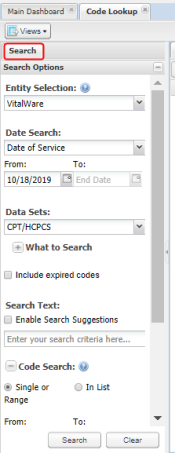
The Search panel is where you can search and filter data sets. The data set selected will drive what filter criteria is available.
|
Search panel
|
Searchable Code data sets:
- APC
- CPT/HCPCS
- CDT Dental Codes (Add-on data set)
- Modifiers
- ICD-9-CM Diagnosis
- ICD-9 Procedure
- ICD-10 CM
- ICD-10 PCS
- Medicaid (CA or OH) (Add-on Data Set)
- DRG (MS-DRG and MS-LTC-DRG)
- NDC/Pharmacy (Add-on Data Set)
- Revenue Codes
- Supplies and Devices
- Billing Codes (Condition, Discharge Status, Occurrence Span, Patient Relationship, Place of Service, Point of Origin, Priority of Admission Visit, Type of Bill, and Value codes
- HIPPS Codes
|
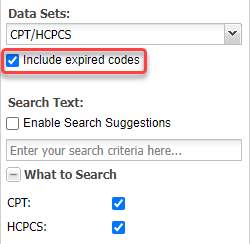
For CPT/HCPCS, you can exclude expired codes by clearing the box. By default, expired codes are included in the search.
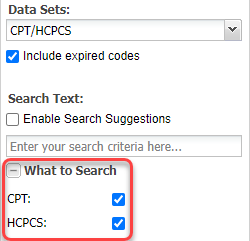
Filter your search to return either CPT or HCPCS codes in the CPT/HCPCS data sets. By default, both are returned.
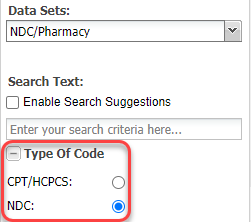
The NDC/Pharmacy data set Type of Code filter allows filtering for either NDC or CPT/HCPCS codes. The default uses NDC codes.
Enter a single, partial, or range of codes after selecting your data set.
Examples that use the options of single, partial, or range:
- Single code: C1725 returns just that code
- Partial code: C17 returns all codes starting with C17
- Range: C1720 to C1730 returns only the codes that fall within that range
- The In List option searches on multiple complete codes. Codes must be separated by a comma when using this option.

The Date Search defaults to the current date as the Date of Service. All information in your search results apply to the date of service chosen. The other filter options are Effective Date, Revised Date, and Expiration Date.
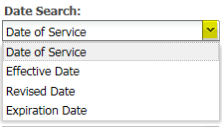
Select the type of Date Search, and then use a single date or a date range to search:
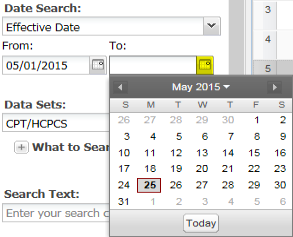
Examples of how each filter is used:
- Date of Service for all data sets.
- Effective Date to get a list of all codes effective on a certain day such as 01/01/2020.
- Revised Date to get a list of all codes that where revised on a certain day such as 01/01/2020.
- Expiration Date to get a list of all codes that were on a certain day such as 12/31/2019.
Entity Selection is for users with access to more than one facility to render the correct information such as APC Payment, LCD information, and other regulatory information that is location specific.
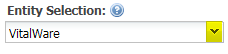
Entity selection defaults to the parent account for users with more than one facility. Use the drop-down list to change facilities.
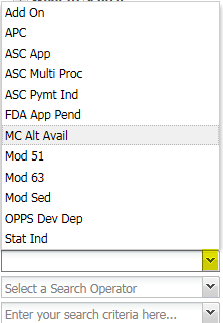
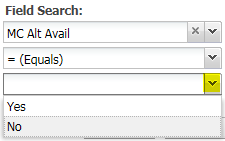
The Field Search filter is an option available in most data sets. The fields available to search vary by data set. The operators also vary by field.
Searchable Fields
APC
CPT/HCPCS
- Add On
- APC
- ASC App
- ASC Multi Proc
- ASC Payment Indicator
- Assistant Surgery Indicator
- Bilateral Surgery Indicator
- Co-Surgeron Indicator
- FDA App Pend
- Global Surgery
- MC Alt Available
- Mod 51 Exempt
- Mod 63 Exempt
- Mod Sed
- Multiple Procedure Indicator
- OPPS Dev Dep
- PC/TC Indicator
- Stat Ind
- Status Code
- Team Surgeon Indicator
ICD-9-CM Diagnosis, ICD-9-CM Procedure, ICD-10 CM, and ICD-10-PCS
- Age Range
- E-Code Indicator
- Gender Indicator
- Manifestation Indicator
- Mental Health Dx
- Questionable Admission Dx
- Unacceptable Principal Dx
NDC/Pharmacy
- Code Source
- Labeler Name
- Pharm Class
- Product Type
- ROA
- SD/MD per each
Devices
- HCPCS Category
- Manufacturer
- Model Number
- UPN
HIPPS Codes
All search filters work in conjunction with one another.
Click Search after selecting search filters. Results will populate in the results table.
Minimize or close the Search panel temporarily by clicking the small arrow in the middle of the panel's right edge.
Click Clear to remove all search selections except Data Set and Entity.
The Date Search type returns to Date of Service using the current date.
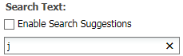
The Search Text filter accepts keywords, partial keywords, single letters or numbers found in the short, medium, or long description.
For example, entering j returns codes containing "j" and search results for descriptions containing the letter "j." Entering the number 4 returns all codes with that number in the description.
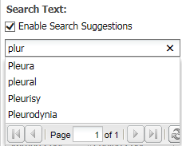
Enable search spelling suggestions by clicking the check box. When enabled, typing a few letters in the search field will generate a list of potential matches.
ICD-9-CM Diagnosis and ICD-10-CM searches use Inclusion terms (clinical concepts) in the Search Text filter. For example, entering malnutrition in the ICD-10 CM data search will pull code E42 for Marasmic Kwashiorkr, because malnutrition is included in the clinical concepts tied to that code.
Searching by Model Number
The following is the best practice when searching the Supplies and Devices data set for a model number:
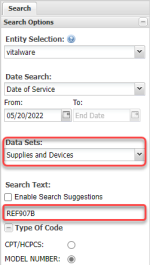
- Select the Supplies and Devices data set.
- In the Search Text field, enter the model number without dashes, slashes, parentheses, or spaces. For example, enter model number "REF 907-B" as REF907B.
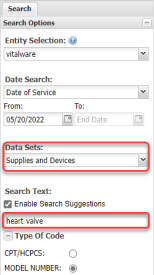
Searching by Product Name or Manufacturer
The following is the best practice for searching Supplies and Devices by product name or manufacturer name:
- Select the Supplies and Devices data set.
- Enter the name of the product or manufacturer in the Search Text field. The more specific your input, the more closely the results will match what you are looking for.
Note: You can also search for a manufacturer's name by selecting Manufacturer under Field Search. However, if you search using this method, you must enter the manufacturer's name exactly as it appears in the database, or no search results will be returned.
 Data Set Filter Options